How to Add Page Numbers to PDF Documents — Free Online Tool
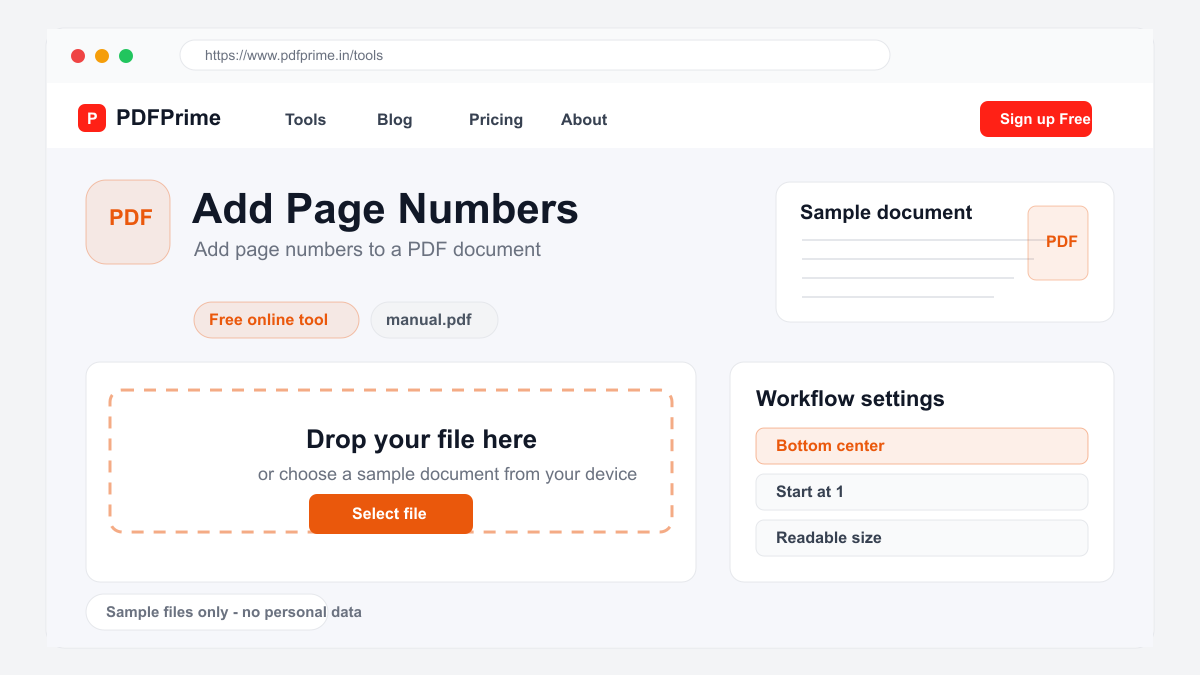
Learn how to add page numbers to any PDF document online for free. Customize position, style, starting number, and font of page numbers.
Why Add Page Numbers to PDF?
Page numbers are essential for professional documents. They help readers navigate multi-page documents, reference specific sections during discussions, and keep printed pages in order. Without page numbers, reassembling a dropped stack of printed pages becomes a frustrating guessing game.
Academic papers, legal briefs, business reports, manuals, and books all benefit from page numbers. Even for internal documents, page numbers add a professional touch and make document navigation significantly easier for readers.
How to Add Page Numbers Step by Step
Go to PDFPrime Page Numbers tool at www.pdfprime.in/tools/pagenumbers. Upload your PDF document by clicking the upload area or dragging and dropping. The tool accepts PDF files up to 100MB.
Choose where you want the page numbers to appear. Options include bottom center, bottom right, bottom left, top center, top right, and top left. Bottom center is the most common choice for professional documents.
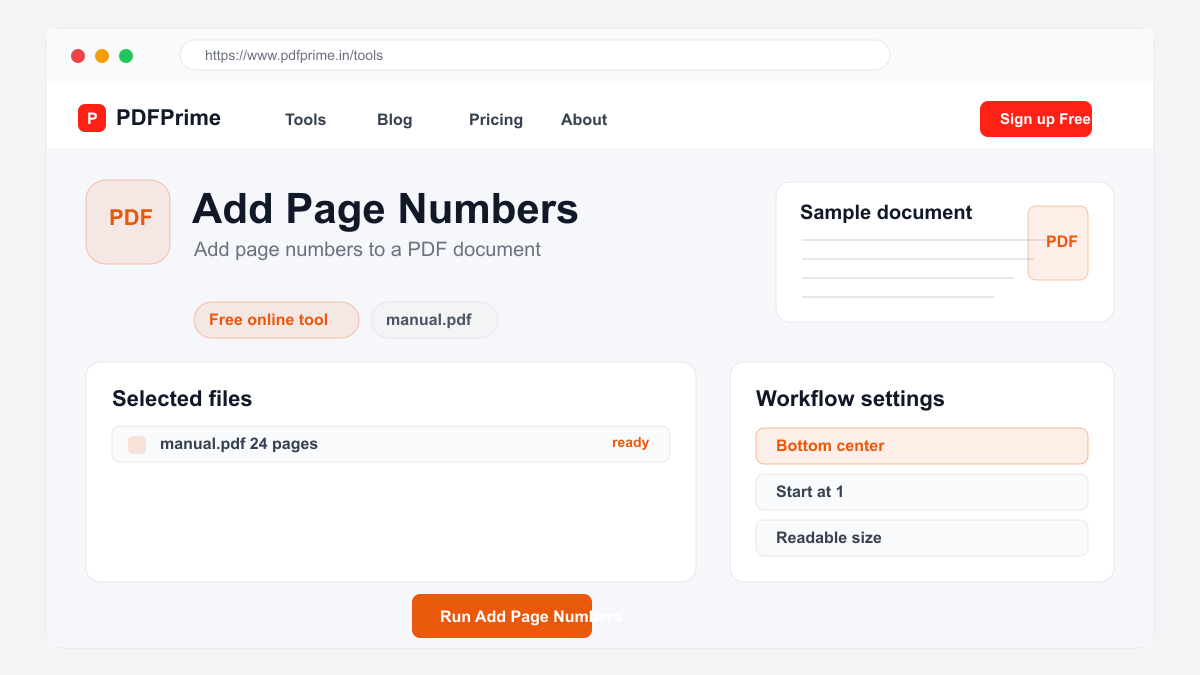
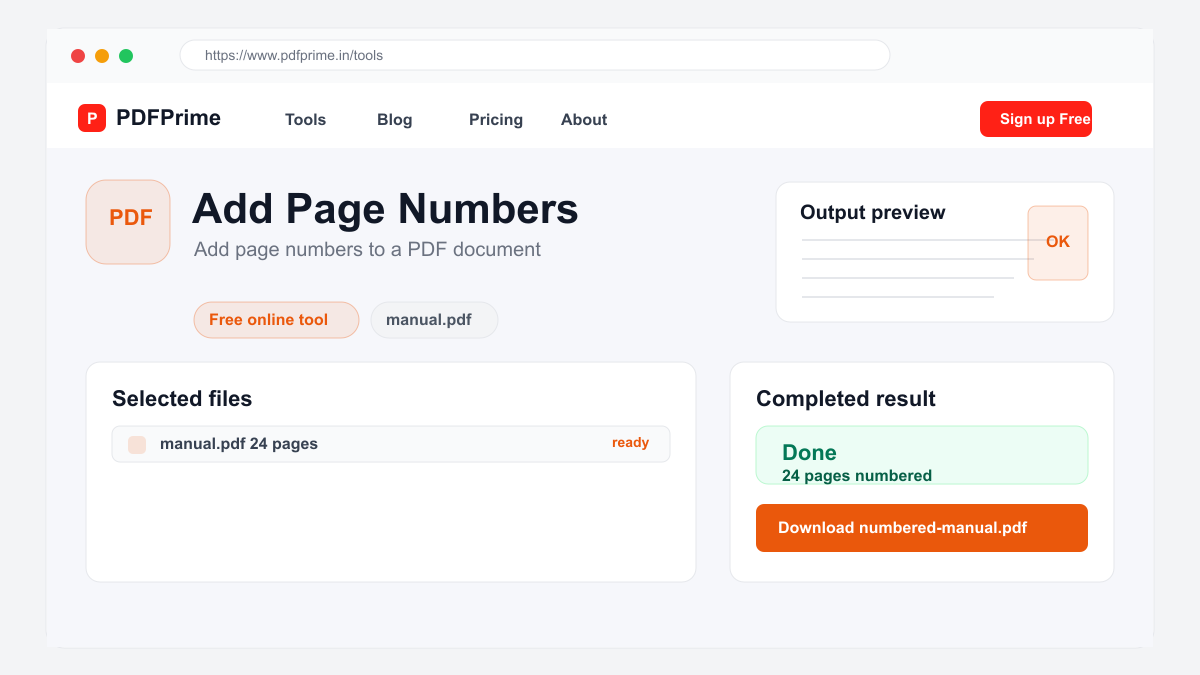
Customize the page number style. Choose the starting number (usually 1, but you can set a custom starting number). Select your preferred font and font size. Click Add Page Numbers and your document will be processed.
Page Number Placement Guide
Bottom center is the standard position for most documents including reports, essays, and books. This position is familiar to readers and does not interfere with headers or footers containing other information.
Top right is commonly used for business documents and letterheads where the top margin already contains company branding. Bottom right works well for documents with wide margins or binding on the left side.
For documents that will be bound or hole-punched, avoid placing page numbers too close to the edge. A margin of at least 1 inch (2.54 cm) from the edge ensures page numbers remain visible after binding or punching.
Who Benefits from PDF Page Numbering
Students add page numbers to essays, research papers, theses, and dissertations before submission. Academic institutions require page numbers for most formal submissions and published research.
Legal professionals number every page of contracts, briefs, and case documents for precise referencing during court proceedings. Business professionals add page numbers to reports, proposals, and presentations for professional presentation and easy navigation.
Security & Privacy
Files are transferred over HTTPS, and output links expire after the configured download window. We do not read, store, or share your documents with third parties.
Frequently Asked Questions
Will page numbers affect my PDF quality?
No, page numbers are added without re-encoding your document. All original content, images, fonts, and formatting remain unchanged.
Can I start numbering from a specific page?
The tool applies page numbers to all pages starting from your chosen number. For selective numbering, split the PDF first and process only the pages you need.
Can I change the font of page numbers?
Yes, you can choose from multiple font options and adjust the font size to match your document style.
Can I remove page numbers later?
Page numbers are embedded directly into the PDF content after processing. To remove them, you would need to reprocess from the original file without page numbers.