How to Convert Excel to PDF for Professional Reports
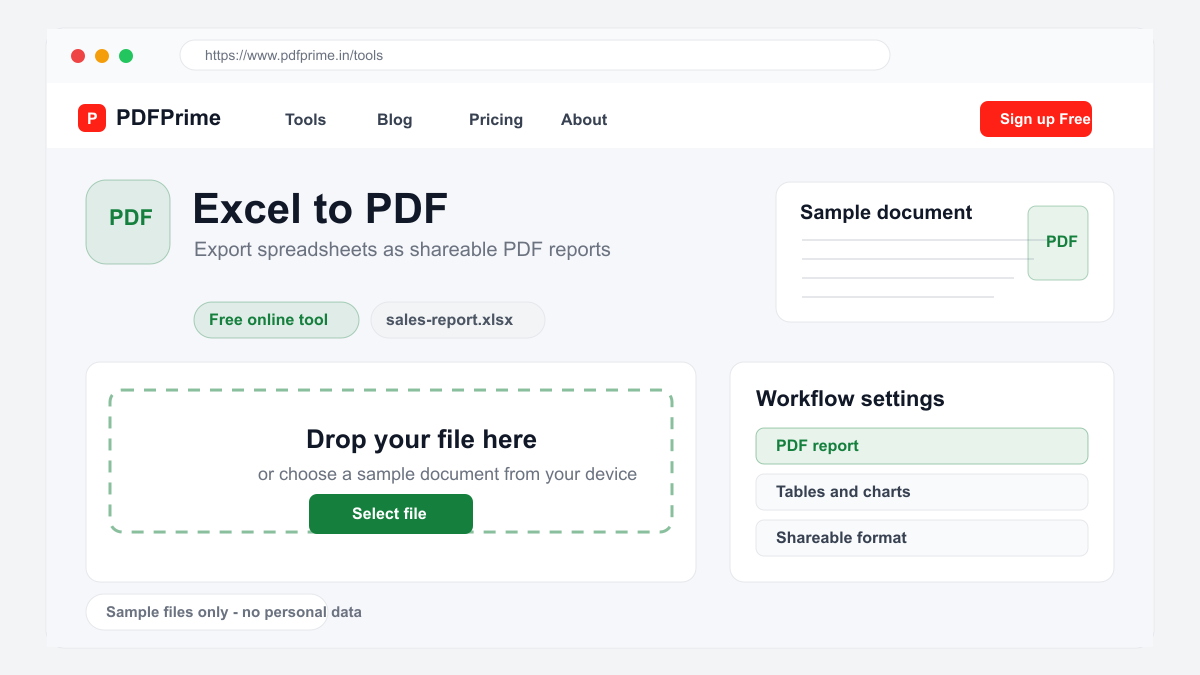
Convert Excel spreadsheets (XLS/XLSX) to PDF format online for free. Preserve tables, charts, and formulas in a universally viewable format.
Why Convert Excel to PDF?
Excel spreadsheets can lose formatting, alignment, and layout when opened in different versions of Excel or on different operating systems. Converting to PDF helps your tables, charts, and data appear more consistently across devices. This consistency is critical for professional reporting.
PDF files are read-only by default, preventing accidental or intentional changes to your data. When sharing financial reports, invoices, or data analysis with clients or stakeholders, PDF format ensures the recipient sees the exact data you intended without modification.
How to Convert Excel to PDF Online
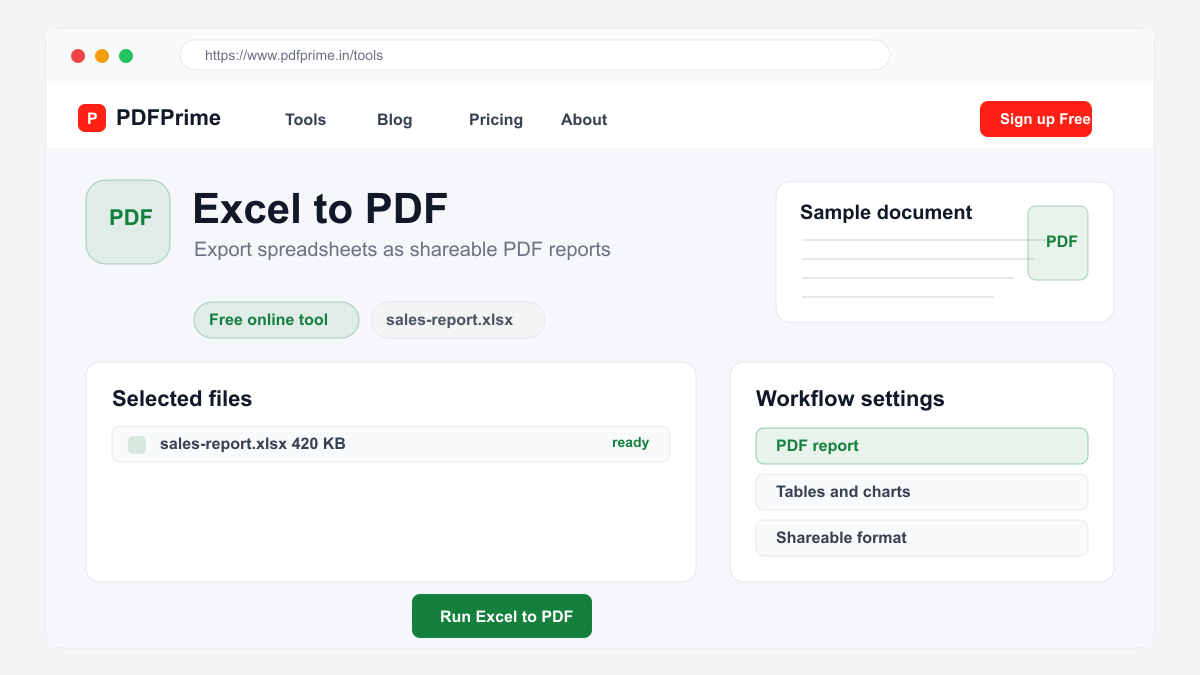
Go to PDFPrime Excel to PDF converter at www.pdfprime.in/tools/excel-to-pdf. Upload your XLS or XLSX file. The tool supports most versions of Excel files including Excel 97-2003 (.xls) and modern Excel (.xlsx) formats.
Choose conversion options. You can convert the entire workbook or select specific sheets. Adjust the page orientation and paper size to match your output requirements. Click Convert to start the server-side processing.
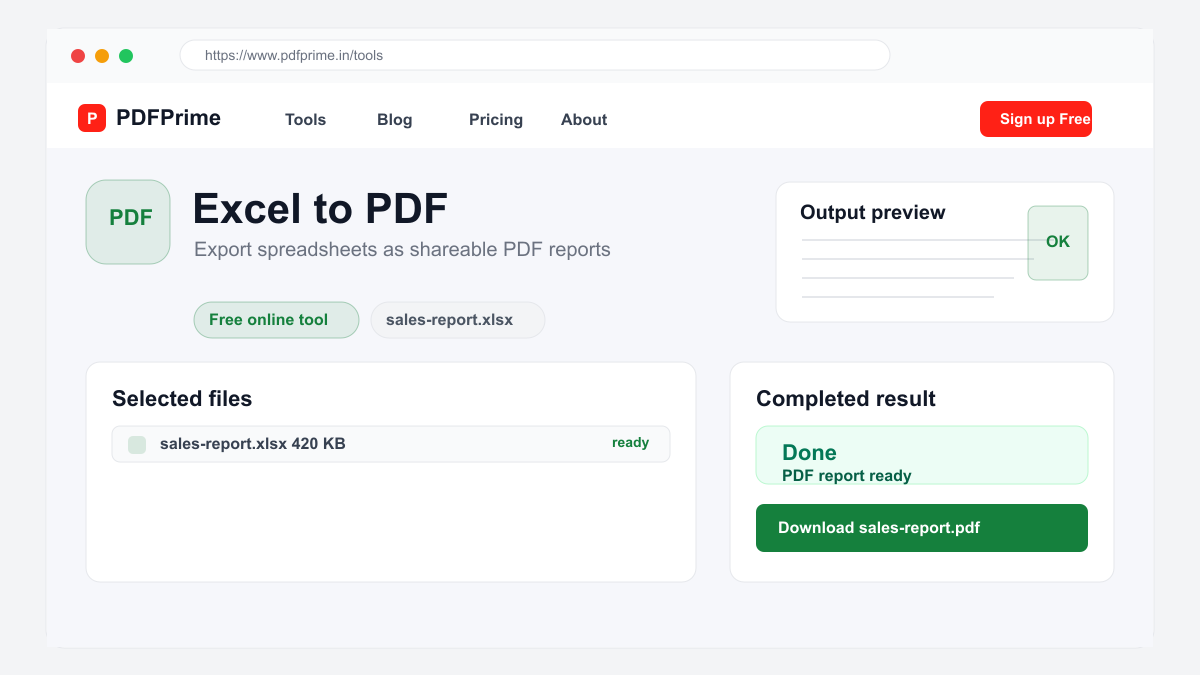
Download the resulting PDF. Your tables, charts, formulas, and cell formatting are captured in the PDF output. The file can be viewed on any device with a PDF reader including phones, tablets, and computers.
What Gets Preserved in Conversion
Tables with cell borders, colors, and merged cells transfer accurately to PDF. Charts and graphs created in Excel are captured as high-resolution images. Text formatting including fonts, sizes, bold, italic, and colors is preserved.
Column widths and row heights are maintained in the PDF output. Headers and footers from Excel page setup are included. Print areas and page breaks defined in Excel are respected during conversion.
Formulas are calculated and the resulting values appear in the PDF. Conditional formatting colors and rules are applied. Data validation dropdowns and input messages are not functional in PDF since PDF is a static format.
Who Uses Excel to PDF Conversion
Accountants and financial analysts convert spreadsheets to PDF for client delivery, regulatory filings, and audit documentation. Business professionals share budget reports, sales data, and performance dashboards with stakeholders.
Data analysts distribute reports to teams and clients who may not have Excel installed. Project managers share project plans and Gantt charts from Excel. Educators share grading sheets, attendance records, and class data with administrators.
Security & Privacy
Files are transferred over HTTPS during upload. The converted PDF is available through an expiring private download link. Files are scheduled for deletion after the download window.
Frequently Asked Questions
Are Excel charts preserved in PDF?
Yes, charts and graphs from your Excel file are captured as high-resolution images in the PDF output.
Can I convert specific sheets only?
Yes, you can choose to convert the entire workbook or select specific sheets for conversion.
Will my Excel formatting be preserved?
Yes, table structure, cell formatting, fonts, colors, borders, column widths, and row heights are all preserved in the PDF output.
Can I edit the PDF after conversion?
PDF is a read-only format. For editing, keep your original Excel file and make changes there before converting again.