How to Convert JPG Images to PDF on Any Device — Free Online
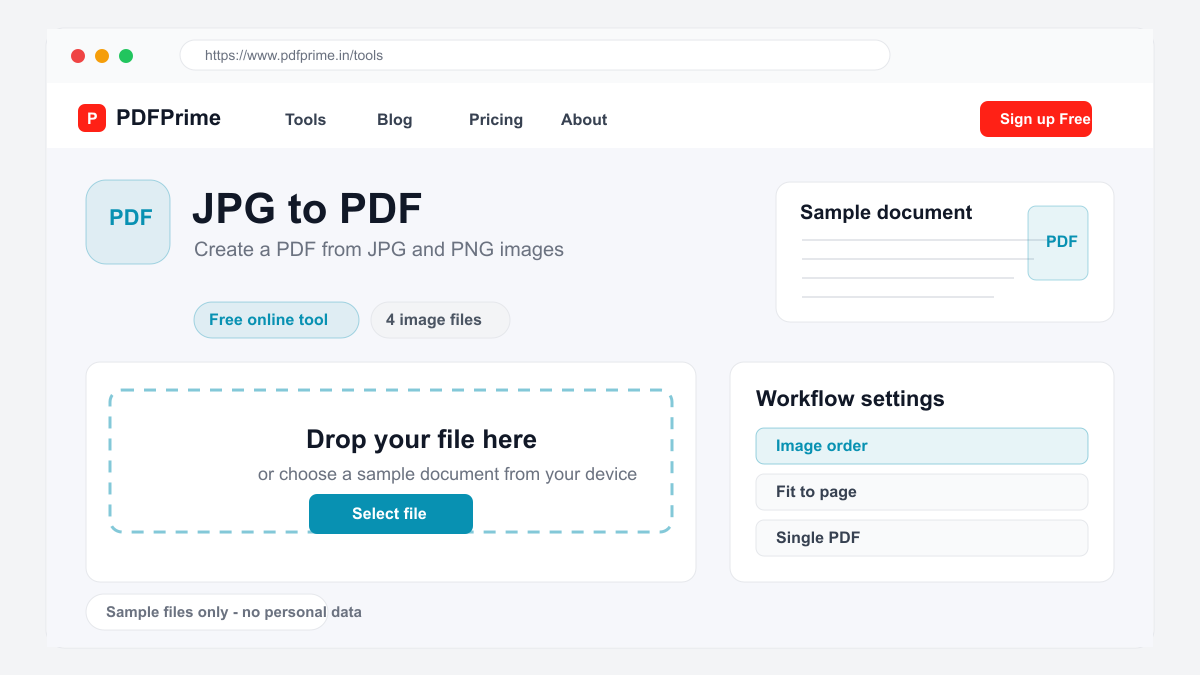
Convert JPG, PNG, and other images to PDF format online for free. Create PDF documents from photos, screenshots, and scanned images quickly.
Why Convert JPG to PDF?
Images are great for viewing but difficult to organize, print consistently, or include in formal documents. Converting JPG images to PDF solves these problems. A PDF keeps your images at their original appearance while making them easy to print with consistent margins, combine with other documents, and share professionally.
Sending multiple JPG files as separate attachments is messy. Converting them into a single PDF makes sharing simple. One file, one download, consistent viewing on any device. This is especially useful for sending photo collections, scanned documents, or portfolios.
How to Convert JPG to PDF Online
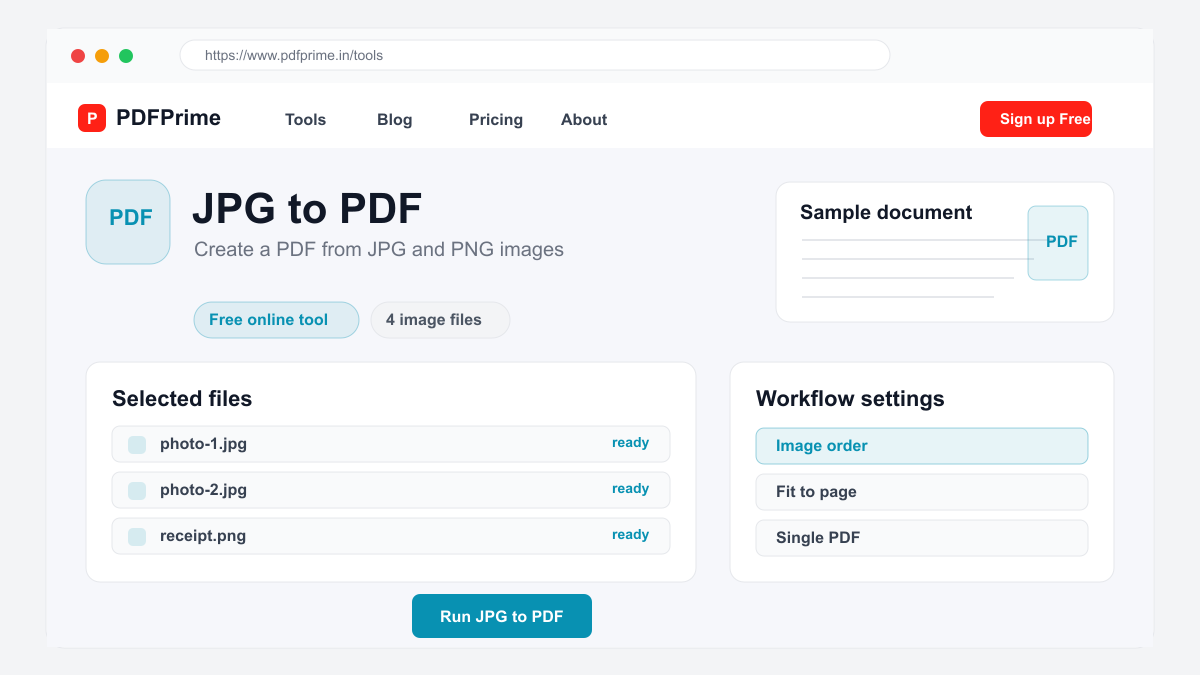
Go to PDFPrime JPG to PDF converter at www.pdfprime.in/tools/jpg-to-pdf. Click the upload area or drag and drop your images. You can upload JPG, PNG, BMP, WEBP, and other common image formats. Each image becomes one page in the PDF.
Arrange the images in your desired order. The page order follows the file order, which you can change before processing. Choose the page orientation and margin settings that suit your document. Click Convert to create your PDF.
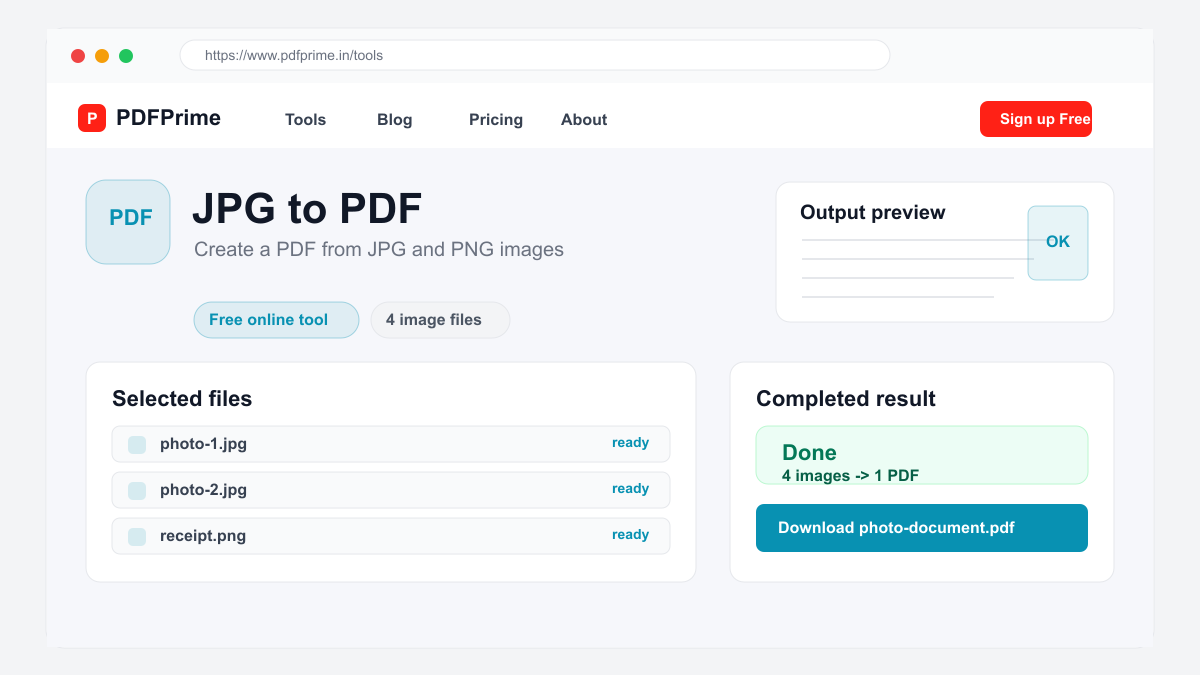
Download the converted PDF file. Each image appears on a separate page at its original resolution. The PDF file size is optimized to balance quality with file size. You can further compress the PDF if needed using our Compress PDF tool.
Best Practices for JPG to PDF Conversion
For documents with multiple images, upload all images at once and arrange them in order. This creates a single PDF instead of multiple files. If your images need cropping or rotation, edit them before uploading for best results.
Use high-resolution images (300 DPI or higher) for print-quality PDFs. For web sharing or email, standard resolution images work well. The PDF format preserves image quality, so starting with good quality images ensures good quality output.
Who Uses JPG to PDF Conversion
Students create PDF collections of lecture slides, reference materials, and handwritten notes photographed with their phones. Photographers prepare portfolios and deliver proof sheets to clients in PDF format. Real estate agents compile property photos into professional listings.
Business professionals combine screenshots, diagrams, and photos into single PDF reports. HR departments collect scanned identification documents as single PDF files. Legal professionals organize scanned evidence and exhibits into structured PDF documents.
Security & Privacy
Your files are transferred over HTTPS during upload and processing. The converted PDF is available through an expiring private download link. Images are scheduled for deletion after the download window. We do not read, store, or share your images with third parties.
Frequently Asked Questions
What image formats are supported?
JPG, PNG, BMP, WEBP, and most common image formats are supported for conversion to PDF.
Can I combine multiple images into one PDF?
Yes, upload multiple images and they will be combined into a single PDF with each image on a separate page.
Will image quality be reduced?
No, images are embedded at their original resolution. PDF format preserves image quality without compression or loss.
Can I convert images on my phone?
Yes, the tool works on any browser including Chrome, Safari, and Firefox on iOS and Android devices.