How to Convert PDF to JPG Images — Extract Pages as Pictures
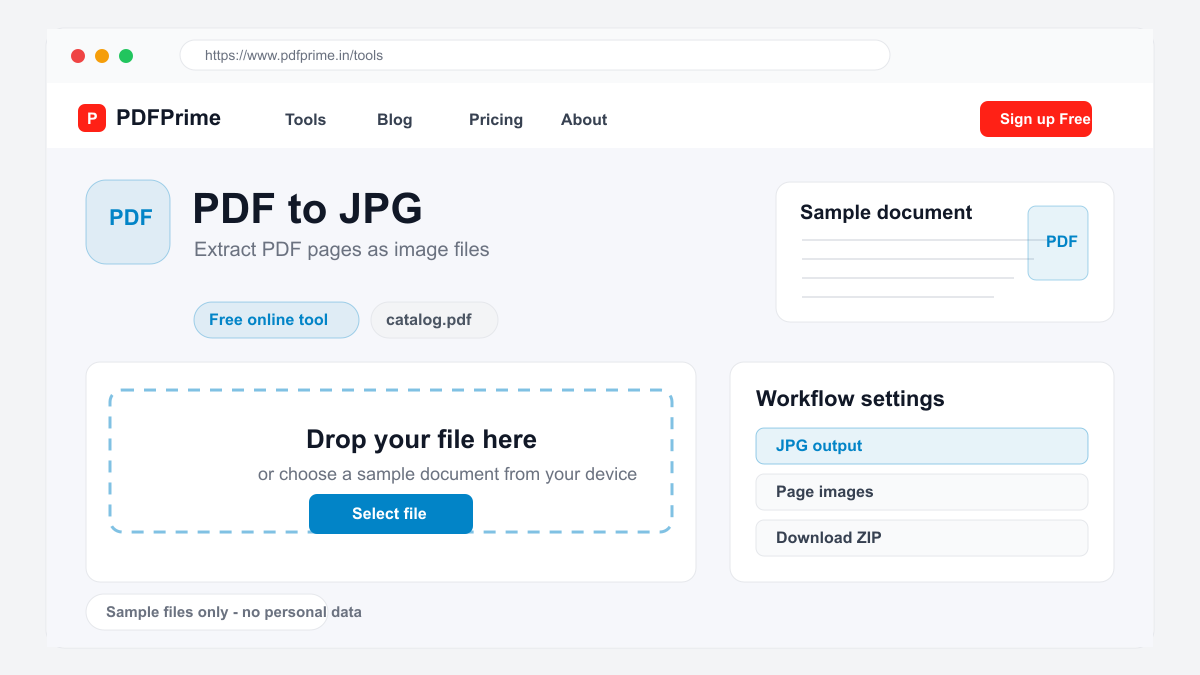
Convert PDF pages to high-quality JPG images online for free. Extract images from PDF, share pages as pictures, or use in presentations.
Why Convert PDF Pages to JPG?
JPG images are universally compatible and easier to share than PDF files. You can embed JPG images in websites, social media posts, presentations, and emails without requiring recipients to open a separate PDF reader. Converting PDF to JPG makes your document content accessible in more contexts.
Each PDF page becomes a separate JPG image file. This is useful for extracting specific pages as images, sharing individual pages from a multi-page document, or using PDF content in graphic design projects, brochures, and marketing materials.
How to Convert PDF to JPG Online
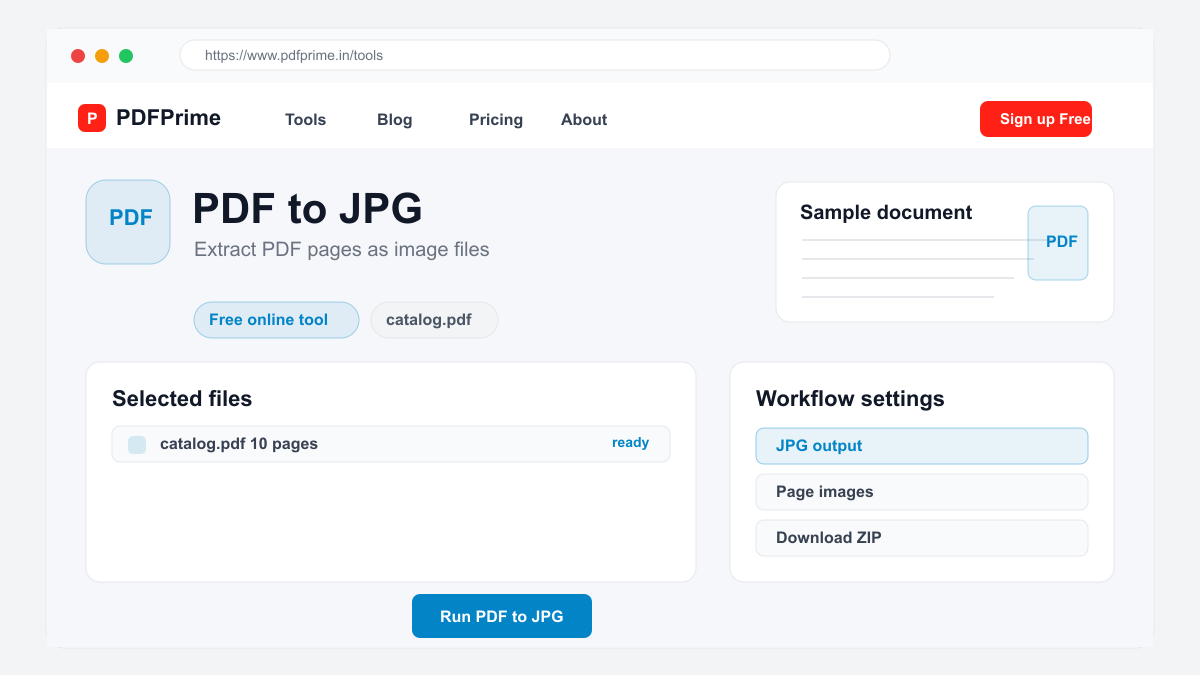
Go to PDFPrime PDF to JPG converter at www.pdfprime.in/tools/pdf-to-jpg. Upload your PDF file. The tool accepts PDFs up to 100MB and supports multi-page documents.
Choose the image resolution. 150 DPI is recommended for web use and screen viewing. 300 DPI produces higher quality images suitable for printing. 72 DPI creates smaller files for email and quick sharing. Each page is converted to a separate JPG image.
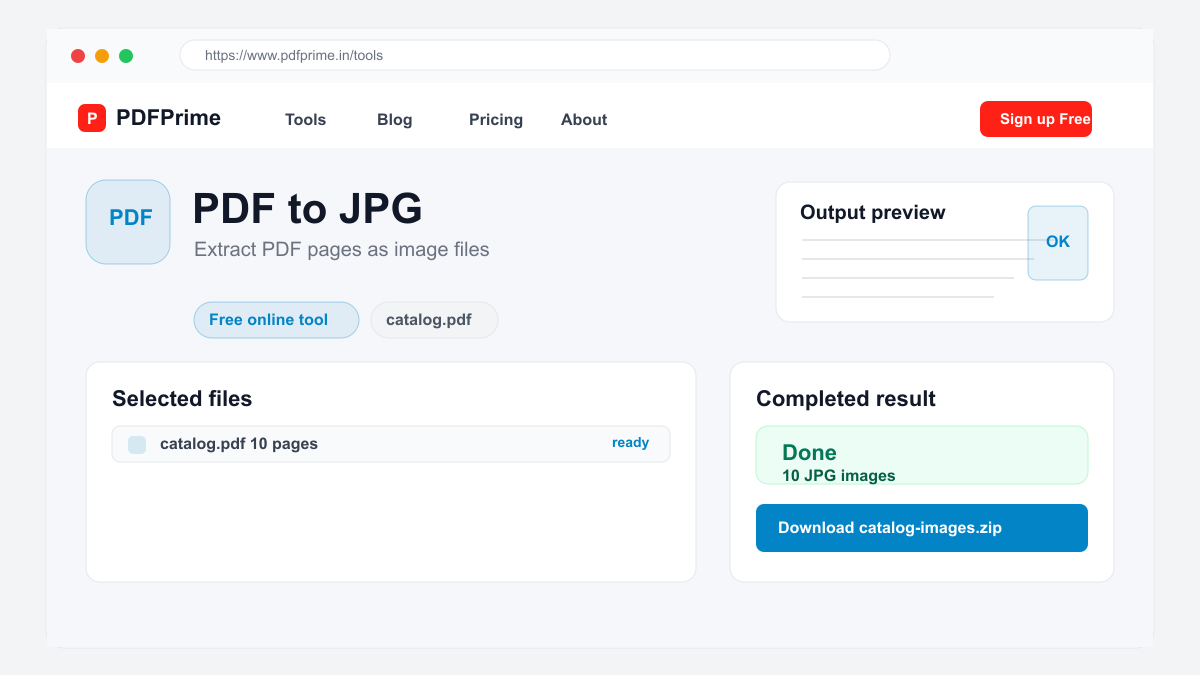
Click Convert. The server processes your PDF and generates individual JPG files for each page. Download all images as a ZIP package or download individual images. Each JPG retains the original page content including text, images, and graphics.
DPI Settings and Quality Guidelines
150 DPI produces good quality images that load quickly on websites and look clear on screens. This is the recommended default for most use cases. File sizes are reasonable at this resolution.
300 DPI is best for printing. Images at this resolution look sharp when printed and are suitable for brochures, flyers, and professional documents. File sizes are larger at 300 DPI.
72 DPI produces the smallest file sizes and fastest loading times. Use this for email attachments, quick previews, and situations where file size matters more than image quality.
Common Use Cases for PDF to JPG
Marketing professionals extract infographics and diagrams from PDF reports for website content and social media posts. Teachers create image-based study materials from PDF textbooks and reference documents.
Web developers capture PDF page screenshots for website demos and portfolio showcases. Business professionals share individual report pages as images in emails and presentations. Content creators repurpose PDF content for blog posts and articles.
Security & Privacy
Files are transferred over HTTPS during upload and processing. The converted JPG images are available through expiring private download links. Files are scheduled for deletion after the download window.
Frequently Asked Questions
Are all PDF pages converted?
Yes, every page in your PDF is converted to a separate JPG image file.
What resolution should I choose?
150 DPI is recommended for web use. 300 DPI for print quality. 72 DPI for smallest file size.
Can I download individual pages?
Yes, you can download individual JPG files or all pages as a ZIP package.
Does the conversion preserve text readability?
Yes, text in the PDF is rendered as part of the image at your chosen resolution. Higher DPI settings produce sharper text.