How to Convert PDF to Word Without Losing Formatting
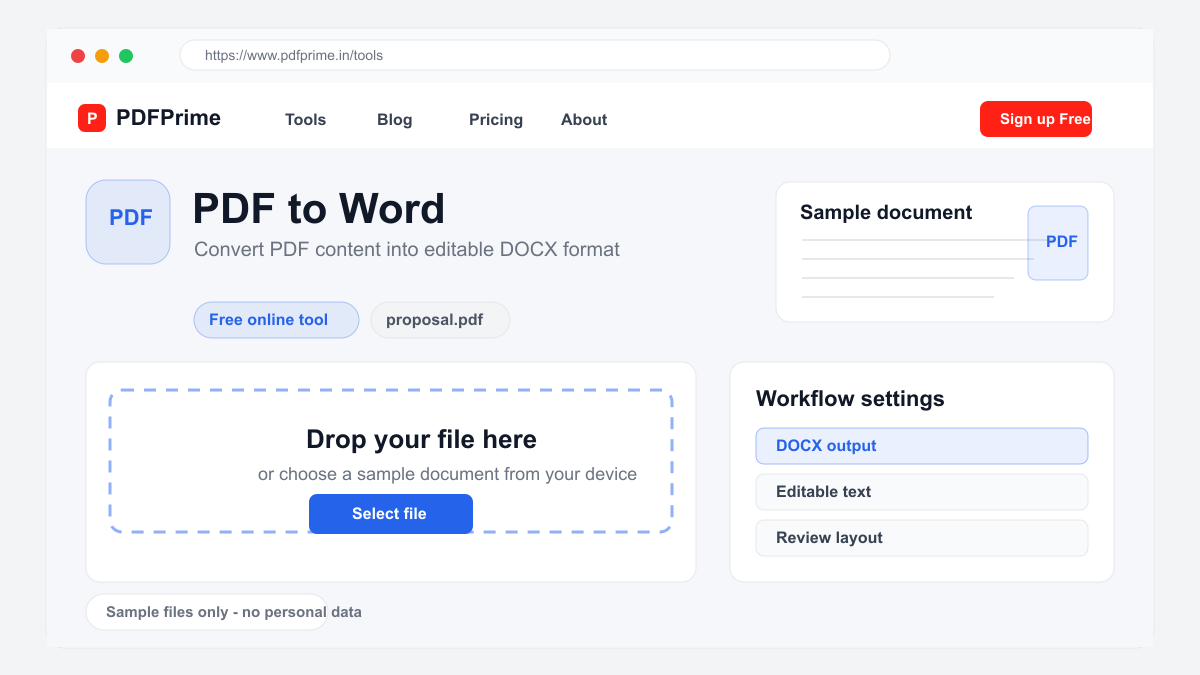
Convert PDF to Word (DOCX) while preserving text, layout, and structure. Free online PDF to Word converter with accurate formatting retention.
Why Convert PDF to Word?
PDFs are great for sharing because they look the same on every device, but they are difficult to edit. When you need to modify text, update information, or repurpose content from a PDF, converting it to Word (DOCX) format gives you full editing capabilities. Our free PDF to Word converter extracts text while preserving document structure.
Common scenarios include editing a contract received from a client, updating a proposal created by a colleague, extracting content from a research paper, or repurposing a report for a different audience. Instead of retyping everything manually, PDF to Word conversion saves hours of work.
What Formatting Is Preserved During Conversion?
When converting PDF to Word, text content transfers with high accuracy. Paragraph structure, heading hierarchy, and basic text formatting such as bold, italic, and font sizes are preserved. Lists with bullet points and numbering are maintained in the converted document.
Simple tables with clear borders and consistent row heights convert well. However, complex layouts with multiple columns, overlapping elements, rotated text, or advanced design features may appear differently in Word. The conversion focuses on extracting usable text content rather than replicating every visual detail.
Images embedded in the PDF are extracted and included in the Word document. However, vector graphics and complex illustrations may be converted to static images. For documents where visual precision is critical, review the converted file and make necessary adjustments.
Tips for Best PDF to Word Conversion Results
For best results, use text-based PDFs generated from word processors like Microsoft Word or Google Docs. These PDFs contain selectable text with embedded font information, making conversion more accurate. Scanned PDFs contain images of text and require OCR processing first before conversion.
Simple document layouts with clear headings, standard fonts, and straightforward table structures produce the most accurate Word output. Documents with heavy formatting, custom fonts, watermarks, or complex page layouts may need manual cleanup after conversion.
After conversion, open the DOCX file in Microsoft Word, Google Docs, or LibreOffice and review the content. Check for any text alignment issues, missing characters, or formatting changes. Use Word styles to quickly reformat headings and paragraphs to match your preferred template.
When to Use PDF to Word vs Other Formats
PDF to Word is the best choice when you need to edit document text, change formatting, or repurpose content. For presentations, use PDF to PPT converter instead. For spreadsheet data, use PDF to Excel. Each format serves a different purpose.
If you only need to extract text without formatting, use our OCR tool for scanned documents. If you need high-quality images from PDF pages, use PDF to JPG. Choosing the right conversion format ensures you get the most useful output for your specific task.
Security & Privacy
Your files are transferred over HTTPS during conversion. The converted document is available through an expiring private download link. Files are scheduled for deletion after the download window. We do not read, store, or share your documents.
Frequently Asked Questions
Will my PDF formatting be preserved?
Text content and basic structure are preserved. Complex layouts, tables, columns, and advanced formatting may differ since the tool focuses on text extraction and usability.
Can I convert scanned PDFs to Word?
Scanned PDFs contain images of text. Use our OCR tool first to extract the text, then you can use the result in Word format for best results.
How long does the conversion take?
Most PDFs are converted after processing. Processing time depends on file size and complexity. Our server-side LibreOffice engine handles the conversion accurately.
Is the conversion free?
Yes, PDF to Word conversion is free for basic use. No registration or software installation is required.