How to Extract Text from Scanned PDF Using OCR — Free Online
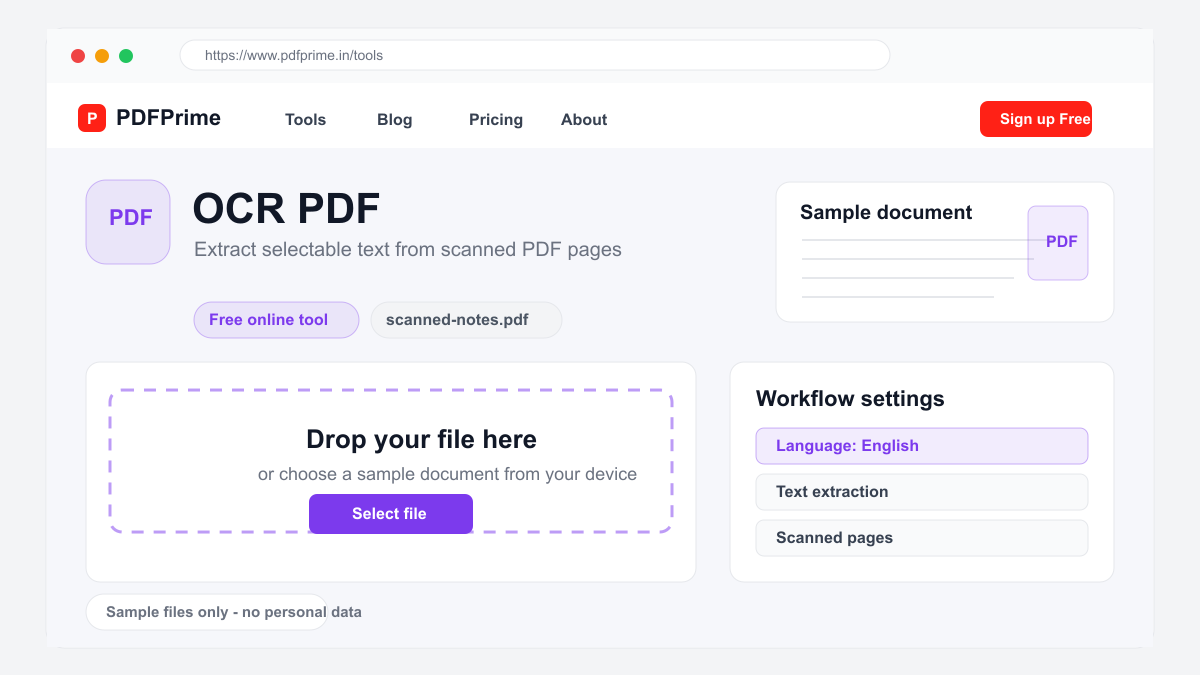
Convert scanned PDFs and images into editable text using free online OCR. Extract text from paper documents without manual typing.
What is OCR and Why Use It?
Optical Character Recognition (OCR) technology identifies text characters in images and converts them into machine-readable text. Scanned documents contain images of text that cannot be searched, copied, or edited. OCR extracts this text, turning paper documents into digital, searchable, and editable content.
OCR saves countless hours of manual typing. Instead of retyping a 50-page document, OCR extracts the text quickly. The extracted text can be searched, copied into other applications, analyzed, and edited. For businesses and individuals dealing with large volumes of paper documents, OCR is an essential productivity tool.
How to Use OCR on Scanned PDFs
Go to PDFPrime OCR tool at www.pdfprime.in/tools/ocr. Upload your scanned PDF or image file (JPG, PNG). For best results, use clear, well-lit scans at 300 DPI or higher resolution. Ensure the text is straight and properly aligned for optimal recognition accuracy.
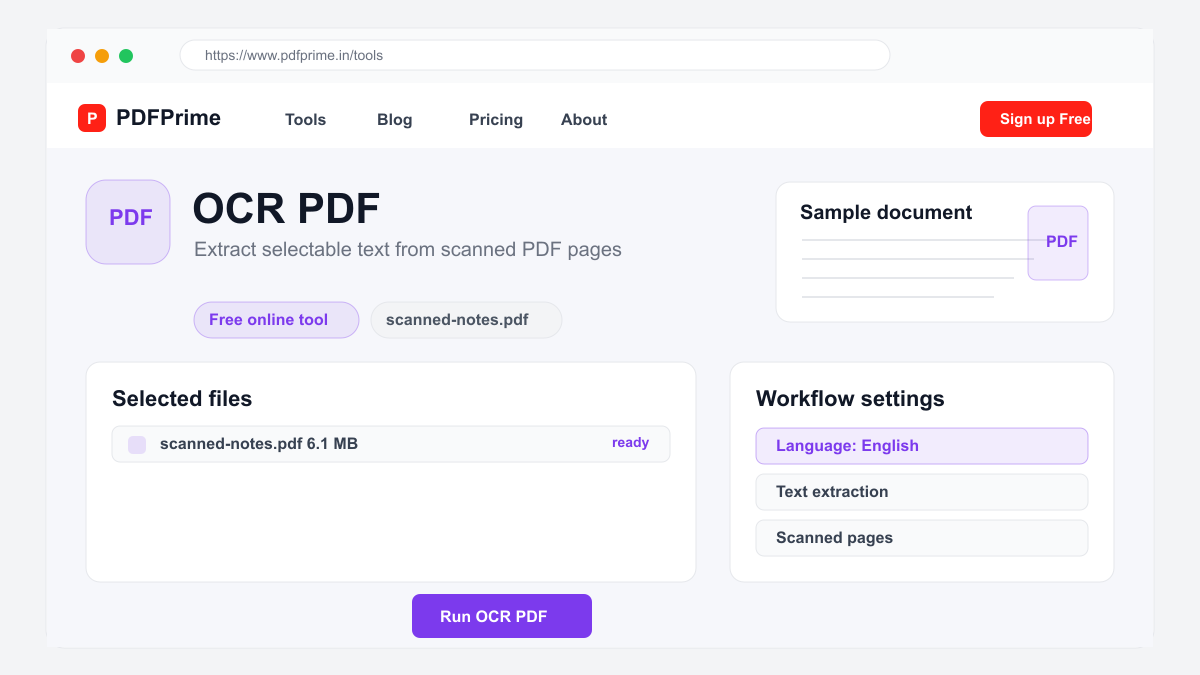
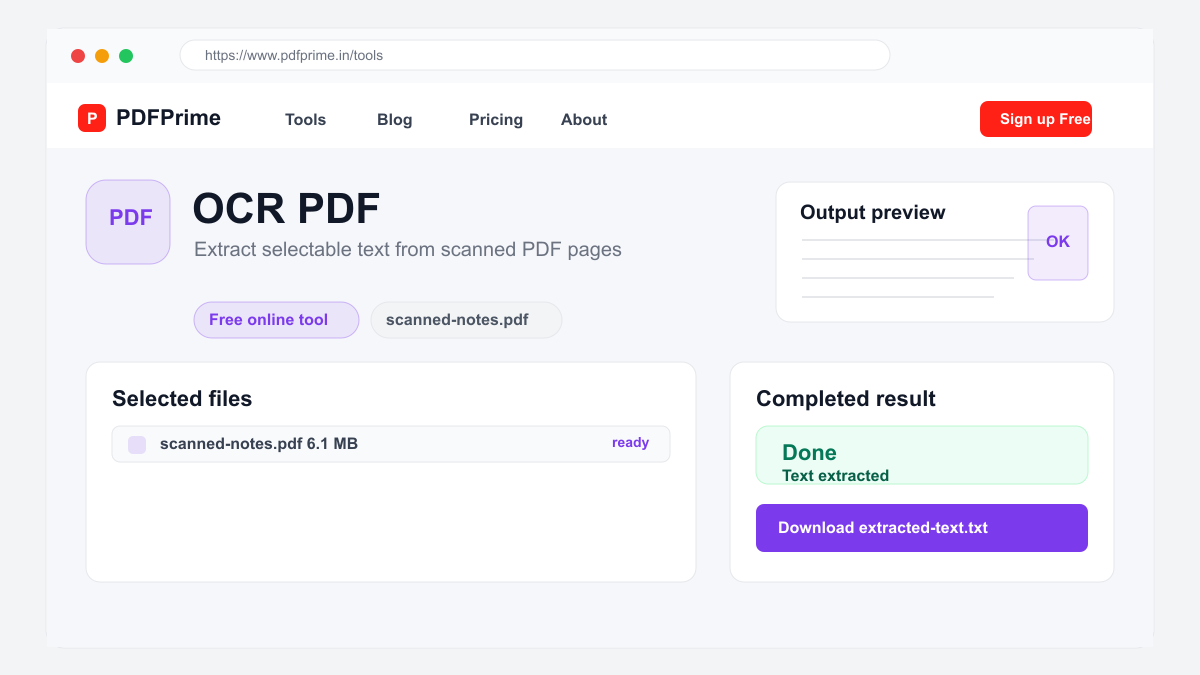
Click the Extract Text button. Our Tesseract.js OCR engine processes each page and identifies text characters. The processing takes a few seconds depending on the number of pages and image quality. Once complete, the extracted text is displayed and available for download as a plain text file.
Review the extracted text for any recognition errors. Common OCR mistakes include confusing similar characters like O and 0, I and l, or S and 5. The accuracy depends heavily on your scan quality. Clean documents with standard fonts typically achieve over 95% accuracy.
Tips for Best OCR Accuracy
Scan documents at 300 DPI or higher. Lower resolution scans lose character detail and reduce recognition accuracy. Ensure the document is flat and properly aligned in the scanner. Crooked pages significantly reduce OCR accuracy.
Use clean, standard fonts like Arial, Times New Roman, or Courier. Ornate, handwritten, or decorative fonts are harder to recognize. High contrast between text and background (black text on white paper) produces the best results.
Clean the scanner glass regularly to avoid dust and smudges on scanned images. Remove any stains, highlights, or marks from the original document if possible. Clear, clean source documents produce the most accurate OCR results.
What to Do with Extracted Text
Once OCR extracts the text, you can copy it directly into Word, Google Docs, or any text editor for further editing and formatting. Use our PDF to Word converter to create an editable DOCX file from the extracted text. The text can also be used for data entry, content analysis, translation, and archiving.
For business workflows, extracted text can be imported into databases, CRM systems, or document management platforms. Researchers can search and analyze extracted text from multiple documents. Legal professionals can review and annotate digitized contracts and case documents.
Security & Privacy
Your files are transferred over HTTPS during upload. The extracted text and original files are available through expiring private links. Files are scheduled for deletion after the download window. We do not read, store, or share your documents or extracted text with third parties.
Frequently Asked Questions
What languages does OCR support?
Currently English is supported. The tool uses Tesseract.js which has capabilities for future multilingual expansion.
How accurate is the OCR?
Accuracy depends on scan quality. Clear scans with standard fonts at 300 DPI or higher achieve over 95% accuracy for clean documents.
Can I OCR images as well as PDFs?
Yes, the tool supports both PDF files and common image formats including JPG and PNG for OCR processing.
Can I use the extracted text in Word?
Yes, copy the extracted text and paste it into Word, Google Docs, or any text editor for further editing and formatting.