How to Optimize PDF Files for Email, Upload, and Sharing
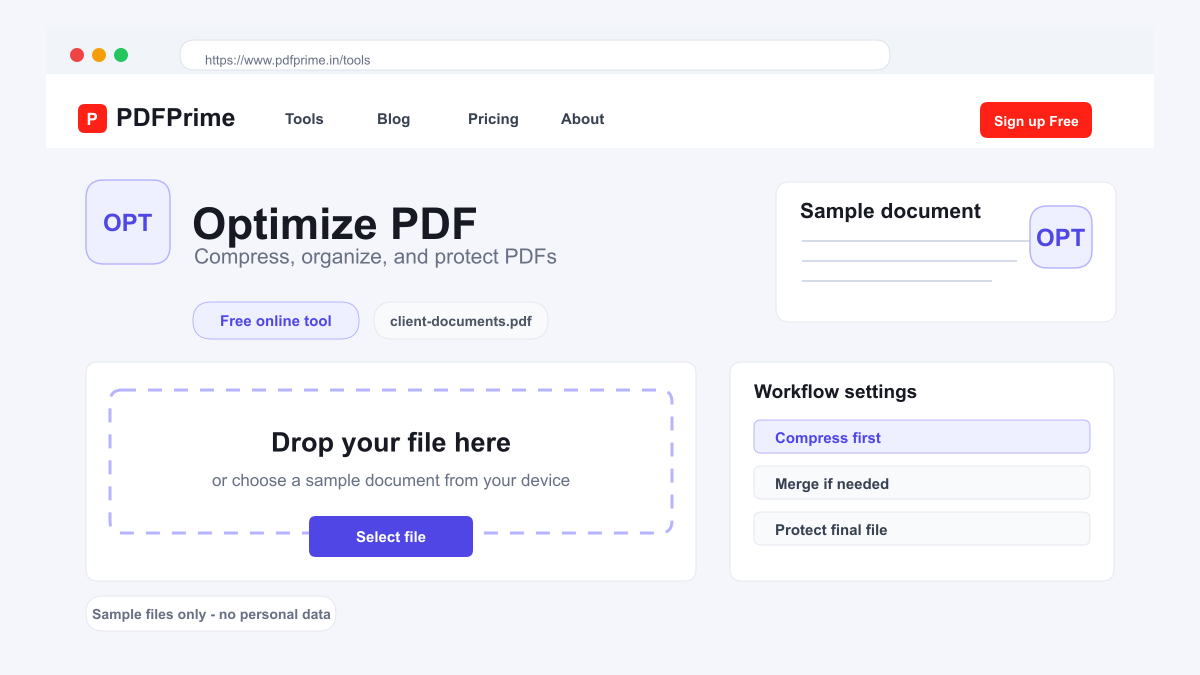
Learn how to compress, merge, and protect PDFs before sharing. Complete workflow for preparing professional PDF documents.
Why Optimize PDFs Before Sharing?
Sending unoptimized PDFs creates problems for both sender and recipient. Large files fail email attachment limits, take too long to upload to cloud services, and consume excessive storage. Multiple separate PDFs clutter inboxes and confuse recipients about which file contains which information.
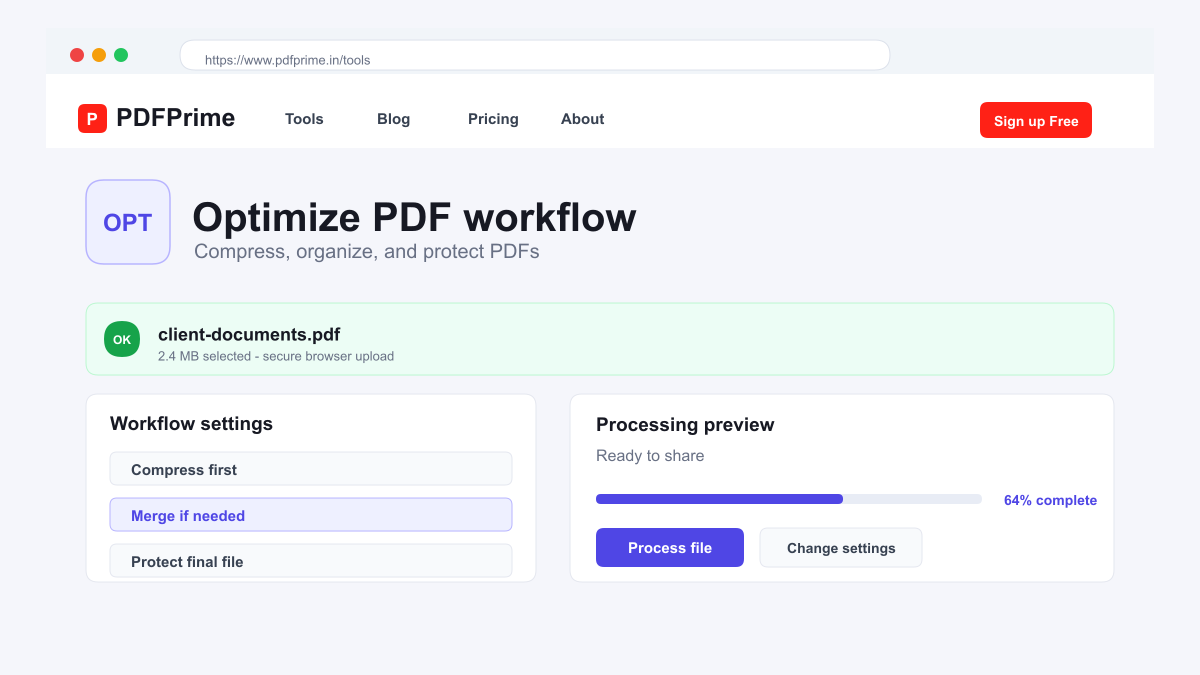
A quick optimization workflow — compress to reduce size, merge to consolidate files, and protect to secure content — ensures your PDFs are professional, easy to access, and safe to share. This three-step process takes only a few minutes but makes a significant difference in how your documents are received.
Step 1: Compress Your PDF for Smaller Size
Start by compressing your PDF to reduce file size. Go to PDFPrime Compress PDF tool at www.pdfprime.in/tools/compress. Upload your file and choose a compression level. Extreme compression is best for email attachments. Recommended compression balances quality and size for most business documents.
After compression, check the new file size. Most PDFs compress by 50-80%, especially if they contain images. If the file is still too large, try a higher compression level or split the document into smaller parts before compressing.
Step 2: Merge Related Files into One Document
If you have multiple PDFs related to the same topic, merge them into a single document before sharing. Go to PDFPrime Merge PDF tool at www.pdfprime.in/tools/merge. Upload all your PDFs and arrange them in the correct order.
Merging creates one organized document instead of multiple attachments. This makes it easier for recipients to find and reference information. A single merged report is more professional than a collection of separate files.
Step 3: Protect Sensitive Documents
For documents containing confidential information, add password protection before sharing. Go to PDFPrime Protect PDF tool at www.pdfprime.in/tools/protect. Set a strong password and share it separately through a different channel.
For an extra layer of security, add a watermark marking the document as Confidential. Use PDFPrime Watermark tool at www.pdfprime.in/tools/watermark. This discourages unauthorized sharing and clearly communicates the document status.
Security & Privacy
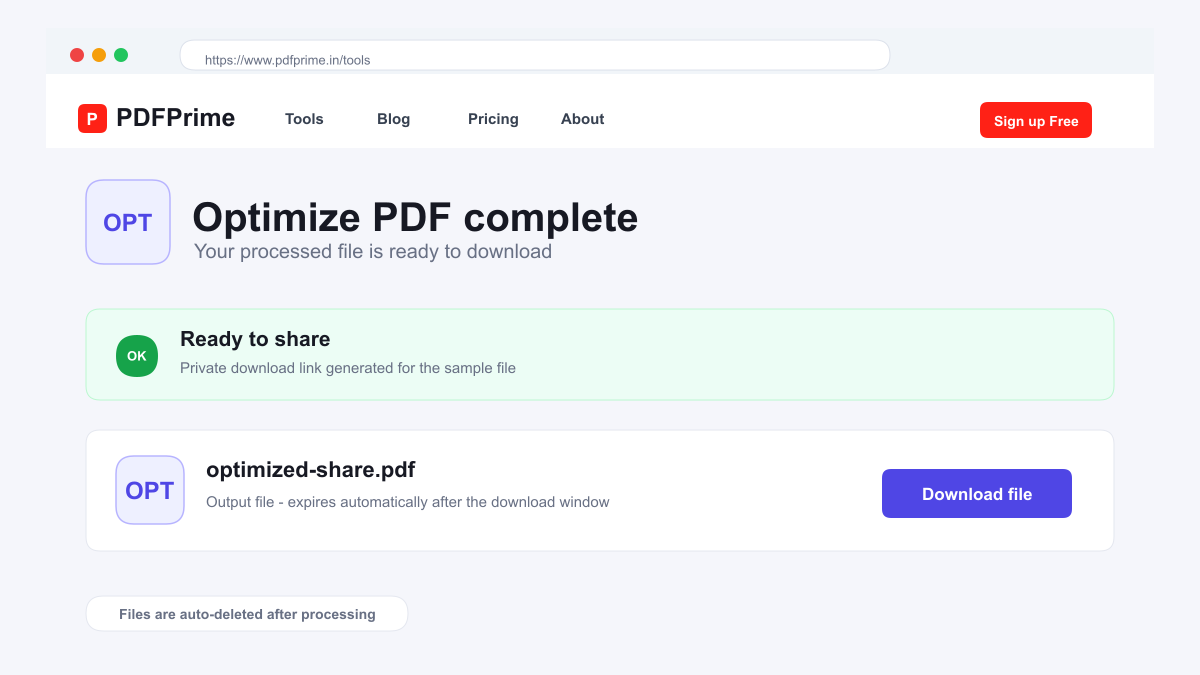
All tools use HTTPS encryption during file transfer. Processed files are available through expiring private download links. Files are scheduled for deletion after the download window across all PDFPrime tools.
Frequently Asked Questions
What order should I optimize files?
Compress first to reduce size, then merge if needed, and finally protect. This order ensures the smallest final file size with security applied.
Can I optimize scanned PDFs?
Yes, scanned PDFs benefit greatly from compression. Extreme compression can significantly reduce scanned document sizes while keeping content readable.
Should I merge before or after compressing?
Compress individual files before merging for best results. This gives you smaller individual files before combining them.
Do I need to optimize every PDF?
Optimization is most useful for files over 10MB, documents with multiple attachments, or files containing sensitive information.