How to Password Protect a PDF for Free — Secure Your Documents
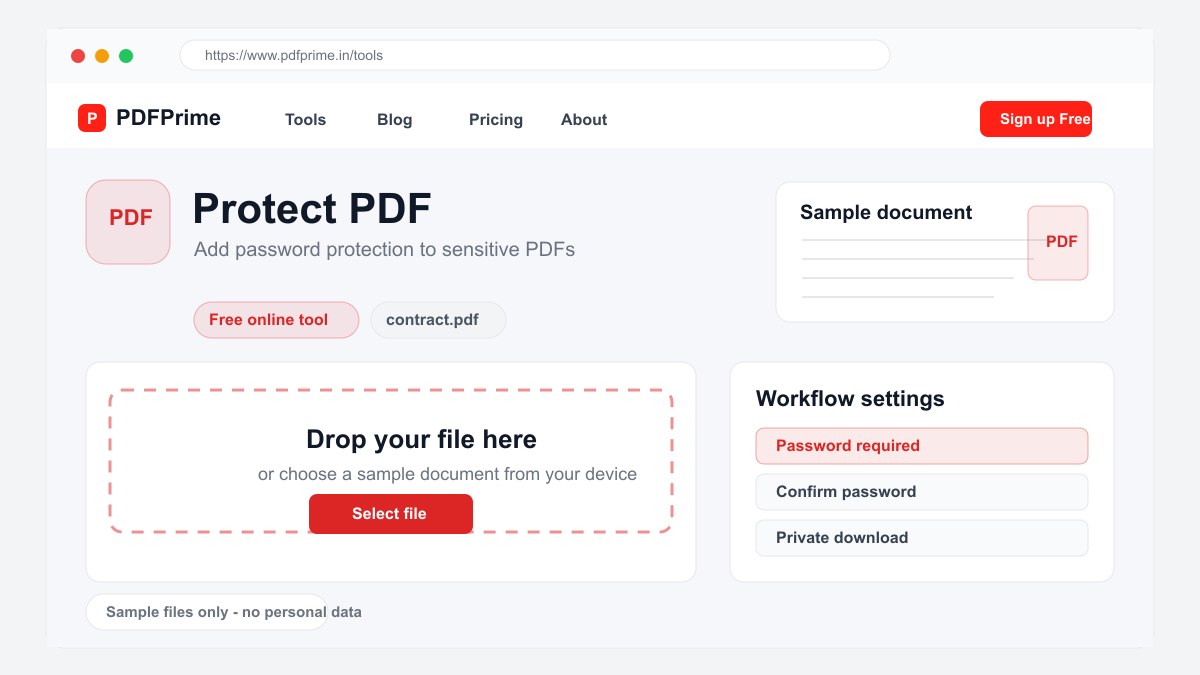
Learn how to add password protection to your PDF files online for free. Secure confidential documents with encryption before sharing via email or cloud.
Why Password Protect Your PDF Files?
Email is not a secure way to send sensitive documents. If someone gains access to an email account, all unprotected attachments become accessible. Password protection adds an essential layer of security, ensuring only intended recipients with the correct password can open your document.
Password-protecting PDFs is important for legal contracts, financial statements, medical records, business plans, employee records, and any document containing confidential or personal information. Even for less sensitive documents, password protection provides peace of mind and demonstrates professional responsibility.
How to Add a Password to PDF Online
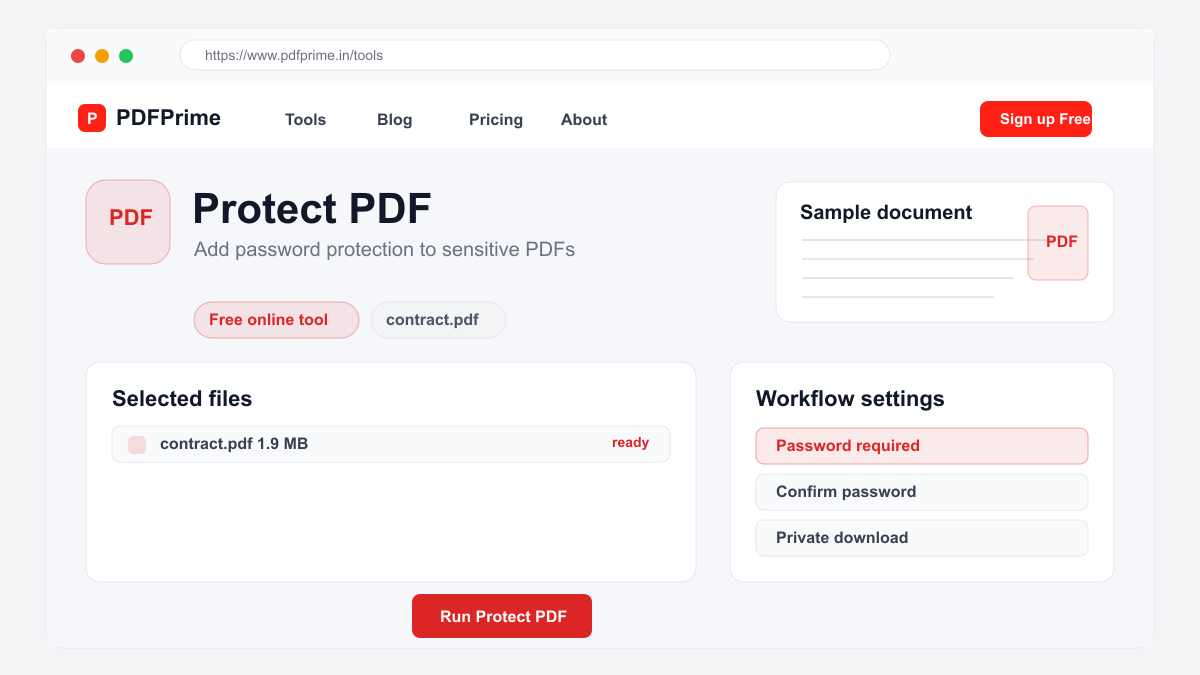
Go to PDFPrime Protect PDF tool at www.pdfprime.in/tools/protect. Upload your PDF file by clicking the upload area or dragging and dropping. The tool accepts PDF files up to 100MB.
Enter a strong password. Use a combination of uppercase letters, lowercase letters, numbers, and special characters. Your password should be at least 8 characters long. Avoid common words, personal information, or sequential patterns. Click the Protect button to apply industry-standard PDF encryption to your document.
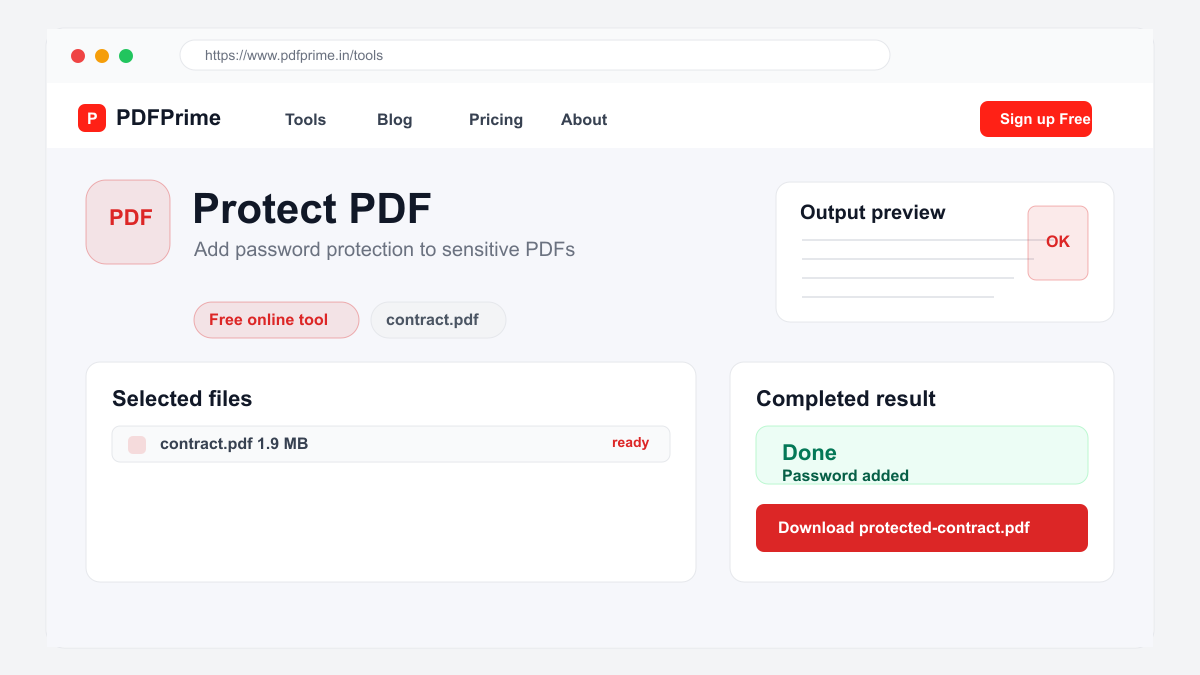
Download the protected PDF. The file now requires the password to open on any device or PDF reader including Adobe Acrobat, web browsers, and mobile apps. Share the PDF and password separately through different channels for maximum security.
Tips for Managing PDF Passwords
Use a password manager to generate and store strong passwords. This eliminates the need to remember complex passwords and reduces the risk of using weak passwords. Popular password managers include LastPass, Bitwarden, 1Password, and browser-based managers.
Share the password through a different channel than the PDF. Send the PDF via email and the password through SMS, phone call, or a secure messaging app. This two-channel approach significantly reduces the risk of unauthorized access.
Create a backup of your unprotected PDF in case you forget the password. Store it securely on an encrypted drive. Remember that password recovery is not possible due to PDF encryption design. If you lose the password, you lose access to the document permanently.
Types of PDF Protection
User password (also called open password) requires a password to open and view the PDF. This is the most common type of protection for sharing confidential documents. Our Protect tool applies this type of encryption to your document.
Owner password (also called permissions password) restricts printing, editing, and copying. Some PDFs have both types. Use our Protect tool for open password protection and our Unlock tool to remove protection when no longer needed.
Security & Privacy
Your files are transferred over HTTPS during upload. We do not store, log, or share your passwords. The protected file is available through an expiring private download link and scheduled for deletion after the download window. Your document security is our priority.
Frequently Asked Questions
Can I remove password protection later?
Yes, use our Unlock PDF tool with the correct password to remove protection when you no longer need the security restriction.
What type of encryption is used?
The tool uses PDF standard encryption compatible with many common PDF readers including Adobe Acrobat, Google Chrome, and mobile PDF viewers.
What happens if I forget the password?
Password recovery is not possible. PDF encryption is designed to be secure with no backdoor. Keep your password safe using a password manager.
Can I protect a PDF that is already password protected?
Use our Unlock PDF tool first to remove existing protection, then apply a new password with the Protect PDF tool.