How to Rotate PDF Pages Permanently — Fix Orientation Online
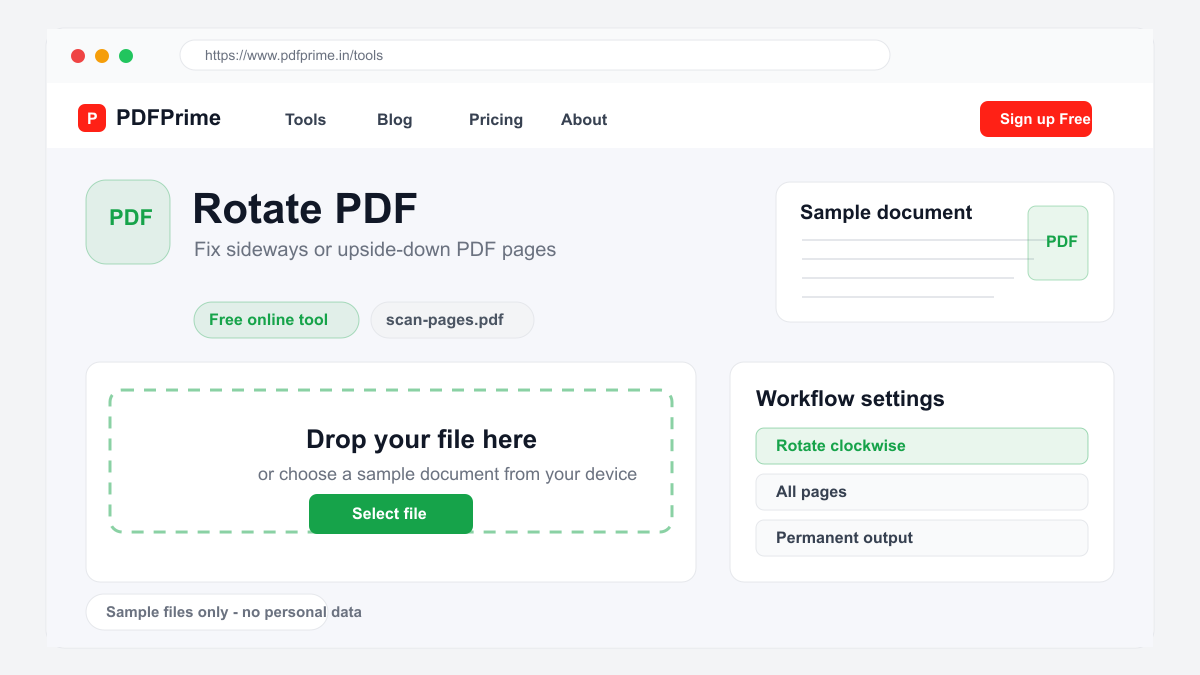
Learn how to rotate PDF pages permanently and save them in the correct orientation. Fix scanned documents, landscape slides, and upside-down pages online.
Why PDF Pages Need Rotation
Scanned documents often come out rotated because the original paper was placed incorrectly on the scanner. PDFs created from phone photos may have wrong orientation because of how the camera was held. Landscape slides embedded in a portrait document need rotation for consistent reading.
These orientation issues make documents frustrating to read. Readers must tilt their heads or rotate their screens. For professional documents, consistent page orientation is essential for a polished appearance and easy reading experience.
How to Rotate PDF Pages Online
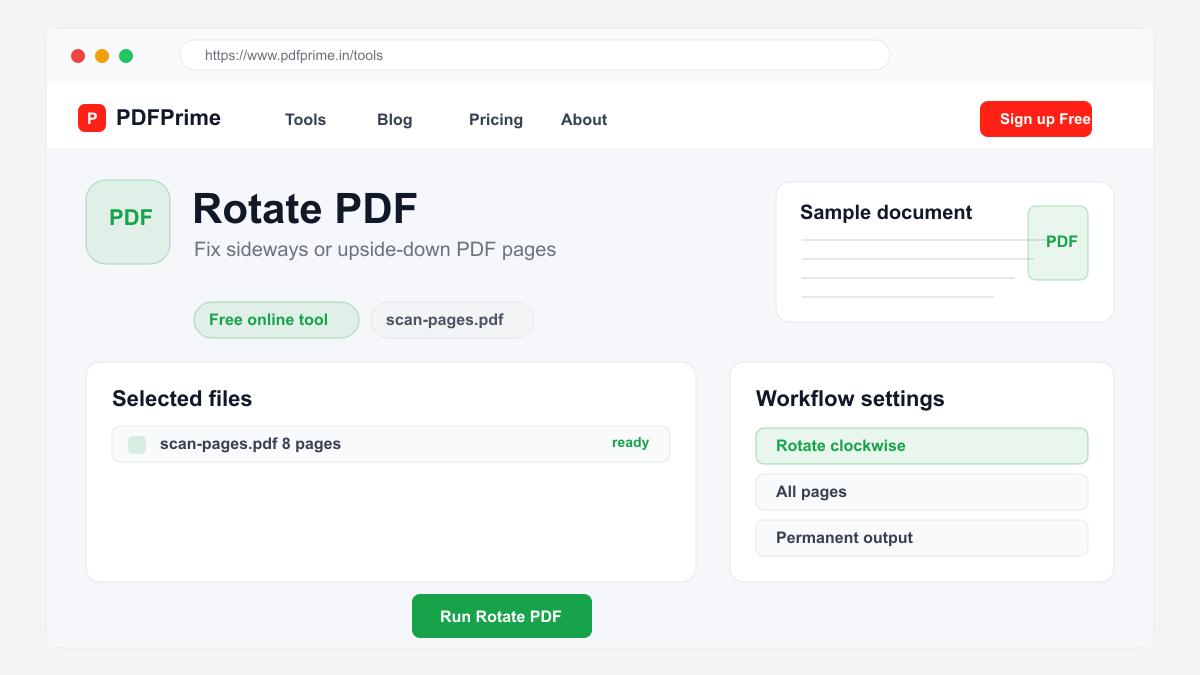
Go to PDFPrime Rotate PDF tool at www.pdfprime.in/tools/rotate. Upload your PDF file. All pages are displayed as thumbnails showing their current orientation.
Select the pages you want to rotate. You can rotate all pages at once or select specific pages. Choose clockwise 90 degrees, counterclockwise 90 degrees, or 180-degree rotation. Click the Rotate button to apply the changes permanently.
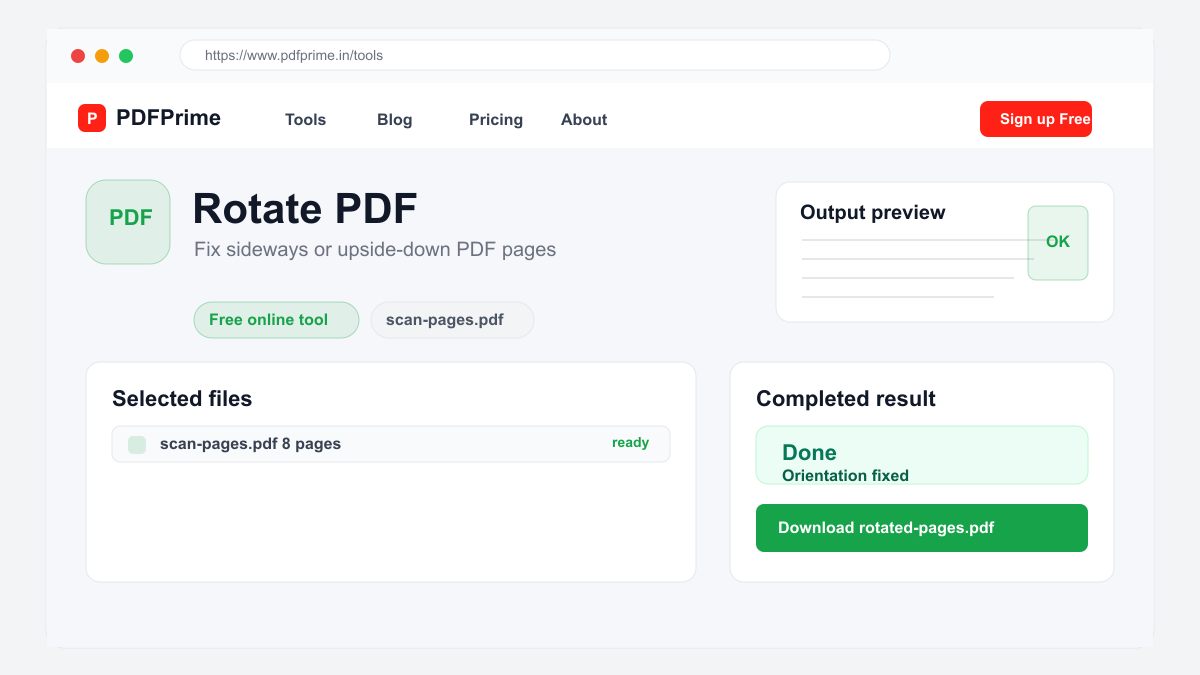
Download the corrected PDF. The rotation is applied directly to the page metadata without re-encoding the content. This means the process is fast and your file size remains unchanged.
When to Use Each Rotation Setting
Clockwise 90 degrees is the most common rotation. Use it when scanned pages appear sideways with the top of the content facing left. Counterclockwise 90 degrees fixes pages where the content top faces right.
180-degree rotation fixes pages that are completely upside down. This often happens with double-sided scanning where the back side is scanned upside down. Use Select All to fix multiple upside-down pages in one click.
Common Rotation Scenarios
Office workers scan stacks of documents where some pages feed at incorrect angles. Students upload phone photos of lecture slides that appear sideways. Accountants receive financial reports with mixed portrait and landscape pages.
Legal professionals digitize old case files where page orientations vary within the same document. Real estate agents compile property documents scanned at different times with inconsistent orientation.
Security & Privacy
Files are transferred over HTTPS, and output links expire after the configured download window. We do not read, store, or share your documents with third parties.
Frequently Asked Questions
Can I rotate individual pages?
Yes, you can select specific pages to rotate or apply rotation to all pages at once.
Will rotation reduce PDF quality?
No, rotation only updates page orientation metadata. Content, images, and formatting are not re-encoded and remain at original appearance.
Can I undo a rotation?
Rotate the page again in the opposite direction to restore the original orientation. For best results, keep a backup of the original file.
Does rotation work for scanned PDFs?
Yes, scanned PDFs are supported. The rotation applies to the entire page including scan content.