How to Split PDF Pages into Separate Files — Extract Pages Online
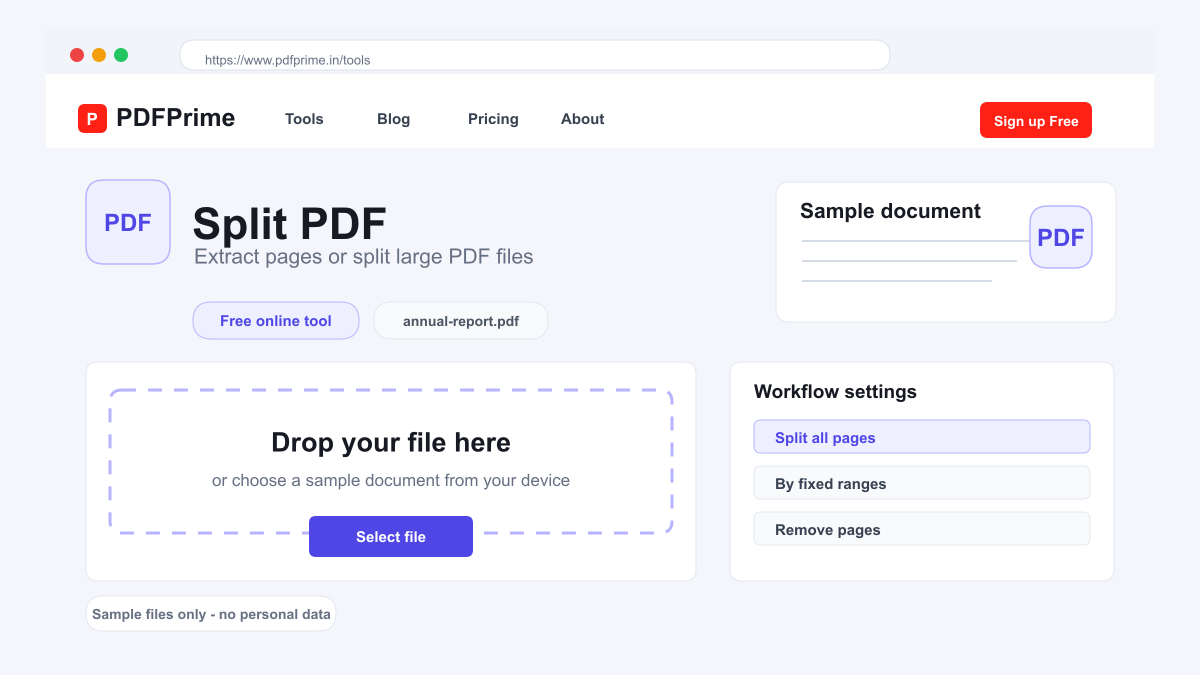
Learn how to split PDF files into multiple documents. Extract individual pages or split by page ranges online for free with PDFPrime.
Why Split a PDF File?
Large PDF files with many pages are difficult to manage, share, and navigate. Splitting them into smaller documents makes it easier to share only relevant pages, reduce file sizes for email, and organize content by topic or section. Instead of sending an entire 100-page report, split and share only the chapters each recipient needs.
Common scenarios include extracting specific chapters from an ebook, separating scanned document bundles into individual files, removing cover pages from a report, and breaking a large presentation into smaller slide decks. Split PDF is also useful when you need to combine certain pages with other documents after extraction.
How to Split a PDF Step by Step
Go to PDFPrime Split PDF tool at www.pdfprime.in/tools/split. Upload your PDF file by clicking the upload area or dragging and dropping. The tool accepts files up to 100MB with any number of pages.
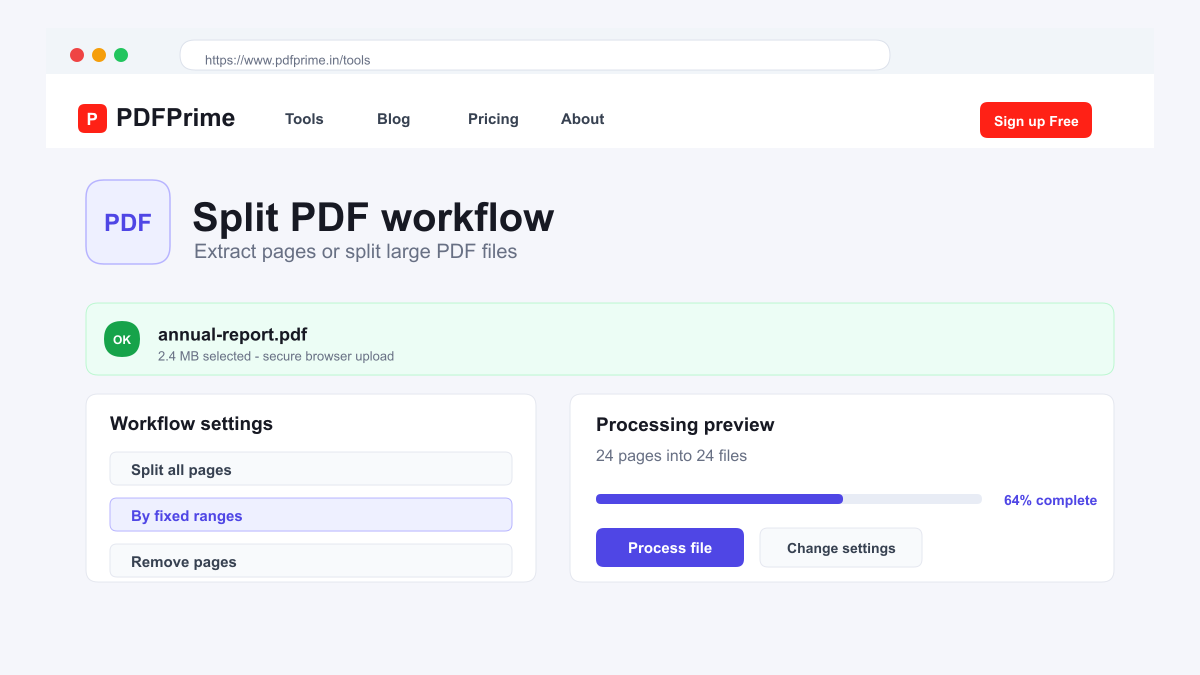
Choose your split mode. Split All Pages creates one file per page, ideal for extracting individual documents from a scanned bundle. Fixed Range splits pages into groups of a specified size, useful for breaking a textbook into chapter-sized files. Remove Pages deletes specific pages from the document instead of splitting.
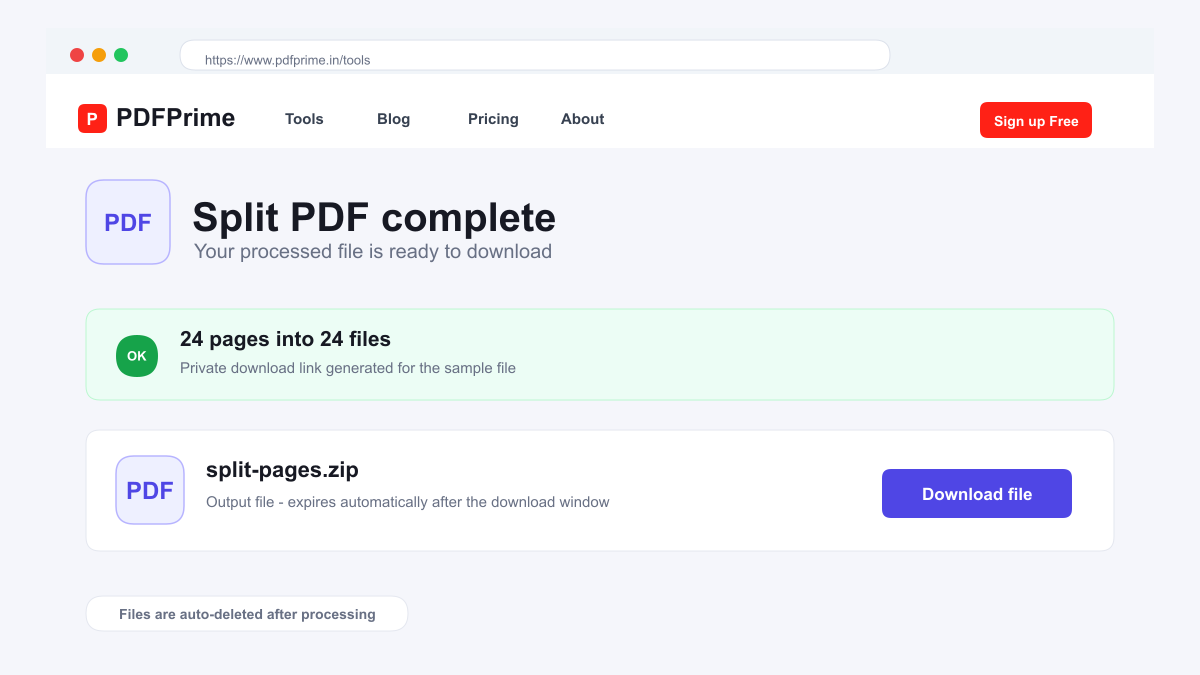
Click the Split button. The tool processes your file in seconds. Download your split files as individual PDFs or as a ZIP package containing all resulting documents.
Split Modes Explained in Detail
Split All Pages mode converts each page of your PDF into a separate file. If your document has 20 pages, you get 20 individual PDFs. This mode is best for separating scanned contracts where each page is a standalone document, extracting specific forms from a multi-page application, or creating individual handouts from a presentation.
Fixed Range mode groups pages into sets of your chosen size. For example, splitting a 50-page document into groups of 10 creates 5 files of 10 pages each. This is ideal for dividing a textbook into chapters, a report into sections, or a manual into logical parts.
Remove Pages mode lets you specify page numbers to delete from the document. The remaining pages are merged into a single output file. Use this to remove blank pages, cover sheets, or appendices without affecting the rest of the document.
Who Uses PDF Splitting
Students extract individual chapters from digital textbooks and separate research papers into manageable sections. Legal professionals divide large case files into individual documents for organized case management and easier client sharing.
Office workers remove unnecessary pages from reports before sending to clients. Accountants separate invoice bundles into individual billing documents. Real estate agents split property document packages into individual disclosure forms.
Security & Privacy
Files are transferred over HTTPS during upload and processing. Split PDF files are available through expiring private download links. Original and processed files are scheduled for deletion after the download window.
Frequently Asked Questions
Can I extract specific page numbers?
Yes, use Remove Pages mode to delete unwanted pages, keeping only the pages you need in a single output file.
Does splitting affect PDF quality?
No, splitting does not re-encode the content. Each page retains its original appearance, fonts, images, and formatting.
Can I split a password-protected PDF?
Use our Unlock PDF tool first to remove the password, then split the unlocked document.
What is the maximum file size for splitting?
The Split PDF tool supports files up to 100MB. Larger files can be compressed first using our Compress PDF tool.